Cogs.Core.Runtime Utility Program
Cogs.Core.Runtime is a Cogs Utility program supporting:
- Display of 3D models, Assets and PointCloud data.
- Editing of 3D models. Features is TBD.
- Data reduction of 3D meshes using Rational Reducer. Features is TBD.
- Optimization of 3D models avoiding multiple material switches when rendering. Features is TBD.
- Other. Features is TBD.
- Batch processing for 3D model conversion.
TOC
- Cogs.Core.Runtime Utility Program
- TOC
- GUI Overview
- Display of 3D models
- Batch processing
- Brief introduction to using Cogs.Core.Runtime
- Support for Object Operations
- Menu commands
- Keyboard shortcuts
- Toolbar Icon Commands
Clear AllOpenSaveUndoandRedoSelect/Translate/Rotate/ScaleVariablesFocus on the Selected EntitiesEntity SearchSolid shadingWireframe shadingSolid Shading with Bounding BoxesUse object local origin as pivot/Use object center as pivotShow AllHide/Show SelectedHide UnselectedInvert VisibilitySelect Furthest Away
GUI Overview
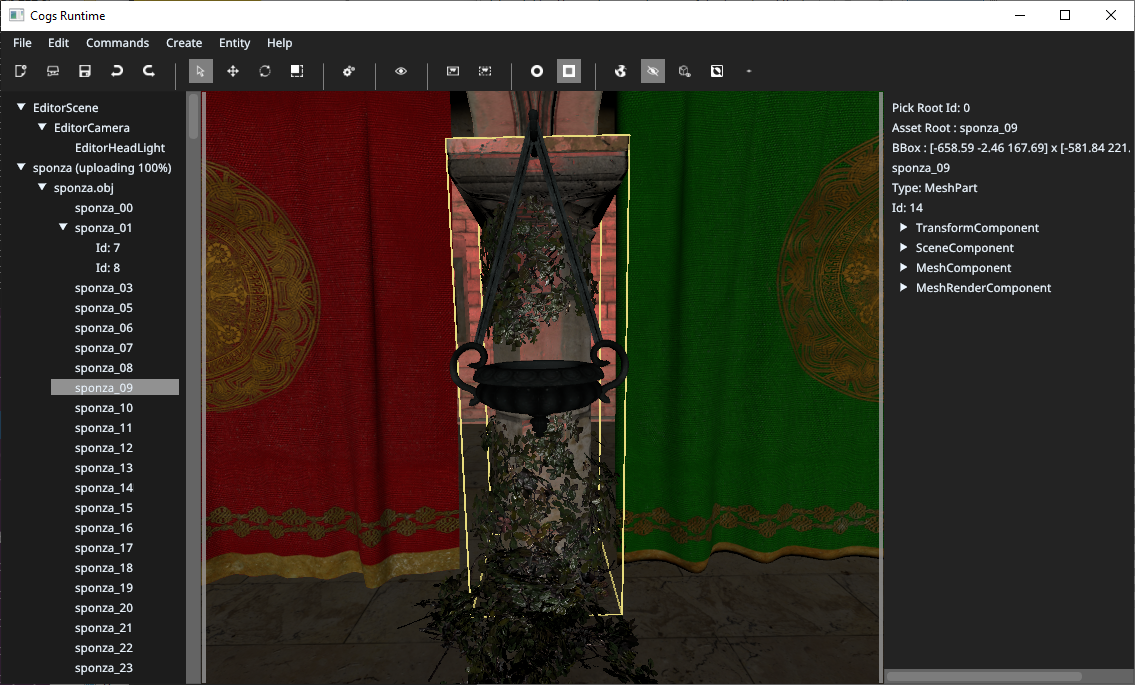
Menus
See Menu commands
Toolbar
Left Panel
Shows the Entity hierarchy in the scene. The picked entity will be highlighted. Selecting an entity shows context-sensitive items in the right panel for inspecting the entity.
Several commands in menu / toolbar operates on selected entity.
Right clicking on an Entity (or multiple selected Entities) shows a context menu, where user can focus on that entity/entities, copy it/them to the clipboard, paste the clipboard object under the current item, copy its name or rename it.
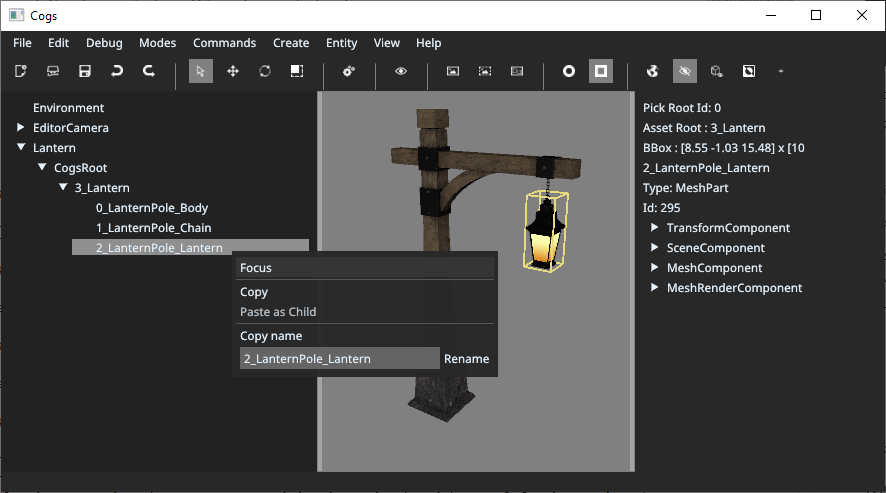
Right clicking on an empty part of the Left panel shows a context menu allowing user to paste the clipboard content on the root entities level or clear the entity selection.
Right Panel
Shows information about the selected entity:
- Entity Search: Search control for entities. Search enabled. See
Entity Search. - Layers - Combo box showing available layers from Rvmparser Layering
- Pick Root Id
- Pick Detail - Optional tag if picking in asset.
- Asset Root - Root entity id if in asset.
- Asset PickId - Optional asset pick id.
- BBox - Bounding box in Global coordinates.
- Id - Entity ID of the picked ID.
- Components belonging to the entity. Inspectors for each.
Status Bar
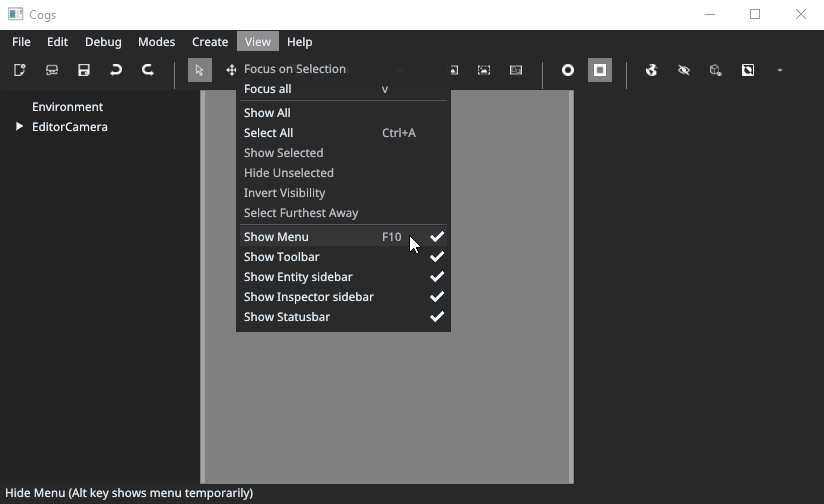
Shows more detailed information about the highlighted menu entry.
View menu contains options to show/hide panels for Menu, Toolbar, Left panel, Right panel and Status bar.
Display of 3D models
The tool offers display models in:
FBX, OBJ, ++- Public Model formats.RVM- Aveva RVM files.VUE- VUE files.rvmdump- KDI internal format used in the Kognitwin CAD import process. Used when importing CAD models via NavisWorks or as intermediate file created by rvmparser: rvmproc program.cogsbin- KDI internal format used to store processed level-of-detail based models in Kognitwin asset-viewer. These files can be found in local Twin server setup in folder: 'Twin/server/files/assets/...'. Opening a .cogsbin file in Cogs.Core.Runtime program displays all the data in the model file..asset- KDI internal format used to store processed level-of-detail based models in Kognitwin asset-viewer. The .asset file is the overall description of the full LOD model. Opening a .asset file in the Cogs.Core.Runtime program allows a preview of the LOD model to be displayed. Asset files can be found typically in the TEMP folder created doing CAD model import to the Twin and in local server in 'Twin/server/files/assets/...'.metafile.json- Point Cloud files converted to Kognitwin format using the Kognitwin Point Cloud importer. To visualize one or several Point Cloud open the 'metadata.json' file in the converted point cloud directory.
Batch processing
Cogs.Core.Runtime is used by the importRVM Kognitwin importer to convert CAD models from RVM, VUE or rvmdump formats to COGS Asset format used in Kognitwin for CAD model level-of-detail based display.
See Batch Format for more information about writing Cogs.Core.Runtime batch files.
To run Cogs.Core.Runtime in Batch processing mode pass parameter:
--editor.batch=Patch\batch-file.json
May also consider setting variable to control amount of logging:
--loglevel=info (Levels by decreasing amount of logging: debug/info/warning/error)
Avoid Cogs window showing up:
--nowindow
Use --help to see options.
Brief introduction to using Cogs.Core.Runtime
After starting the program, use Open to Browse for and open a model or Point Cloud file. When the data is loaded use the Eye toolbar entity to Position the Camera to put the model in focus.
If several models should be viewed simultaneously, it is possible to import several files at once or to do several Open, importing a model at a time.
When selecting an Entity on the left side, COGS properties for the Entity is displayed on the right side. Properties for display can be edited and changes are shown in the model display. The editor is very much a COGS developer tool where the names and properties are direct replicates of the program controls for displaying the data. Clicking on model geometry will select the entity and show entity on left panel, and properties on right.
Common categories (Components) are:
sceneComponentControls visibility and hierarchy of the display.transformComponentControls transformation, scaling - translation.assetComponentControls display when importing an '.asset' file.potreeComponentControls display of point-clouds. Common changes after loading is 'pointShape' and 'coloring'.materialComponentMaterial for display. Colors, textures etc.
Support for Object Operations
Rvmparser Layering
Rvmparser module can split 3D construction designs objects into logical layers (See Rvmparser documentation for details). When loading a layered object file, select the root node or any of its children in the left panel, or pick any of the object parts in the scene. The Right panel will show a choice-box with available layers. Selecting a layer will make the parts in the object belonging to the layer visible.
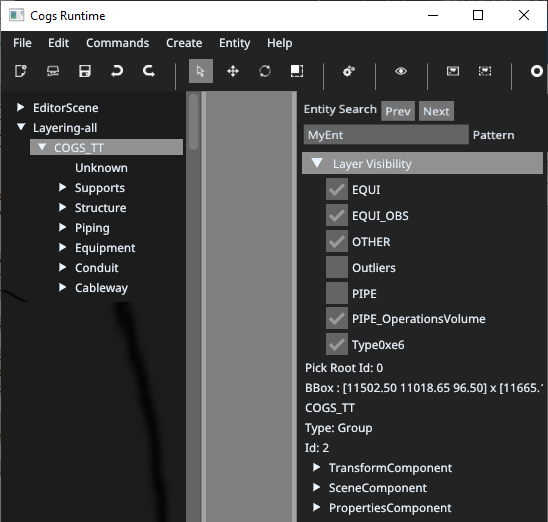
Above figure shows Layering GUI for a cogsbin file containing layering information with Right Panel "Layer Visibility" opened.
In Right Panel:
- Entity Search: Search control for entities. Search enabled. See
Entity Search.
individual visibilities can be toggled using the check-boxes.
Toolbar command Invert Visibility will switch to showing all parts NOT in layer.
This GUI is typically used when defining layering rules. A rvmparser RvmProc script runs layering task and serializing the output to cogsbin. GUI is used for viewing the result and refining the layering rules. Can also be used if CAD Import pipeline serializes cogsbin with layering info.
Some tips:
- Select in the left panel or pick in the scene any part of a layered object to show the Layer Visibility states.
- Turn off visibility of e.g. Piping to search for pipes not detected.
- Use
Invert Visibilityto find layers without any objects (will always be invisible).
3D Model Optimization
Baking Meshes etc. TODO
Menu commands
File Menu
File.Clear All
Clears any loaded files and resets the GUI.
Does not ask for confirmation unless variable editor.askSave=true.
Start with command parameter: --editor.askSave=true
File.Open
Open a file for viewing in the GUI. File Types:
- Scene. Extension: .scene
- 3D Model. Extensions: .obj, .fbx, .gltf, .glb, .rvm, .rvmdump, .cogsbin, .vue
- 3D Model converted to Asset. Extension: .asset or .asset.zst
- PoTree point-cloud. Select 'metadata.json' file in folder.
- 360 Lod Image data. Select '360.json' file in folder.
Note that not all 3D model file format extensions are visible by default. Select All files as types and try an import for other types.
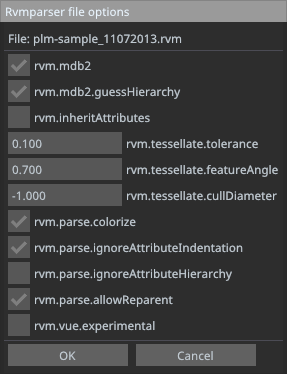
In the case of opening rvmparser supported files (.rvm, .rvmdump and .vue) and a single file selection, a rvmparser options dialog will be shown allowing user to control some rvmparser parameters.
File.Save
Save the contents in Cogs scene format. More relevant is usually to use the Menus File.Export Selected As / File.Export Scene As allowing more export formats.
File.Export Selected As
Allows exporting selected entities in cogsbin / GLTF / GLB formats. These formats can be imported in Cogs.js.
File.Export Scene As
Allows exporting whole scene in cogsbin / GLTF / GLB formats. These formats can be imported in Cogs.js.
Edit Menu
Edit.Undo
Normal editor undo/redo commands. Not possible to undo all operations.
Edit.Redo
Normal editor undo/redo commands. Not possible to undo all operations.
Edit.Copy
Copy Selected Entity.
Edit.Paste
Paste copied Entity below selected.
Edit.Select All
Select all entities.
If the Entity Search is non-empty, all entities matching the search pattern is selected.
Can be followed by Hide Unselected to only show matching entities.
Possible usage is as part of layering a complex CAD model for Asset display.
Edit.Toggle Entity Search
Turn Entity Search of or off.
Debug menu
Contains entries to help understanding 3D object contents and complexity.
Debug.Enable/Disable asset lod freeze
Allows toggling Asset display level of detail freeze for debugging Asset display. Controls Cogs variable: "resources.assets.lodFreeze".
Modes Menu
This menu contains items for setting the Editor in different entity manipulation modes, e.g. Select/Rotate/Scale/Translate.
Also rendering mode select to do Solid shading, Wireframe shading or Solid Shading with Bounding Boxes.
Commands Menu
Shown after creating Entities or opening File.
Create Menu
This menu is allows creating new Cogs Entities. Populated with some common entity types. A Group entity can be created, then several files (Models) can be loaded using the Group as selected giving them a common ancestor (for later saving).
Entity Menu
Allows adding new Components to the selected entity or deleting the selected entity.
View Menu
Used for selection, visibility and focusing camera.
Help Menu
Gives links to this online version of document and to Cogs online help.
Keyboard shortcuts
| Shortcut | Description |
|---|---|
| E | Set mode: Rotate |
| F | Focus on the Selected Entities |
| Ctrl(F) | Entity Search |
| G | Show/Hide COGS Debug GUI |
| R | Set mode: Scale |
| V | View All |
| W | Set mode: Translate |
| 0 | Set Rendering Mode 0 (solid) |
| 1 | Set Rendering Mode 1 (Wire frame) |
| 2 | Set Rendering Mode 2 (TBD) |
| Ctrl(A) | Edit.Select All |
| Ctrl(Z) | Edit.Undo |
| Ctrl(Y) | Edit.Redo |
| Ctrl(C) | Edit.Copy |
| Ctrl(V) | Edit.Paste |
| Ctrl(O) | Open |
| Ctrl(G) | Group selected |
| Ctrl(Delete) | Delete selected |
| Left | Select Parent Entity |
| Right | Select First Child Entity |
| Up | Select Previous Sibling Entity |
| Down | Select Next Sibling Entity |
| 0 | Solid Shading |
| 1 | WireFrame Shading |
| 3 | Solid Shading with Bounding Boxes |
| F10 | Show/Hide Menu panel |
Toolbar Icon Commands

Clear All
Clears any loaded files and resets the GUI. See File.Clear All.
Open
Open a file. See: File.Open
Save
See File.Save.
Undo and Redo
Normal editor undo/redo commands. Not possible to undo all operations.
Select / Translate / Rotate / Scale
Sets the editor in selected mode. It is possible to move, rotate and scale objects or part of object. Selected entities are transformed.
Variables
View Cogs Variables with possibility to edit.
Focus on the Selected Entities
First select the requested object or hierarchy by picking with mouse and/or selection in selection tree on left side.
Zooms to the selected item(s).
Entity Search
When enabled. Shows search text box on right size. The string is a regular search (partial match) expression. Editor Status bar is updated to show result of search.
Also shows Prev/Next button to navigate between entities.
Holding Control key down while selecting Next / Prev gives auto-focus to selected entity.
Enabling is toggled using Ctrl(F) or using Edit Menu search toggle entry.
Solid shading
Draws all in normal display mode.
Wireframe shading
Draws all in wire-frame mode.
Solid Shading with Bounding Boxes
Draws all in normal display mode with BoundingBoxes drawn as yellow WireFrame.
Use object local origin as pivot / Use object center as pivot
Affects how the Rotate mode operates.
Show All
Make all objects visible
Hide/Show Selected
Toggles visibility of selected object and all children. It is possible to toggle visibility in the sceneComponent in right panel, but this changes only for selected entity. Children may still be invisible.
Hide Unselected
First select object(s). Then use this icon to only show selected objects.
Also note that another way of switching visibility is to select object, then open SceneComponent on right side and toggle Visible there.
Invert Visibility
Toggles visibility of all objects. Can limit visible object first by using Hide unselected (or select Layer), then Invert Visibility to check if i.e. Layering is OK.
Select Furthest Away
Can be used to find outliers in model. First select one part of the model, then press this icon to select object in tree furthest away from center of selected bounding box.
Keyboard modifier keys can be used to tune direction of search for example Alt to find outlier in Z-direction.
Modifiers: Shift(X-axis), Control(Y-axis), Alt(Z-axis)
Typical use is to use Focus on the Selected Entities afterwards to zoom in on selection.